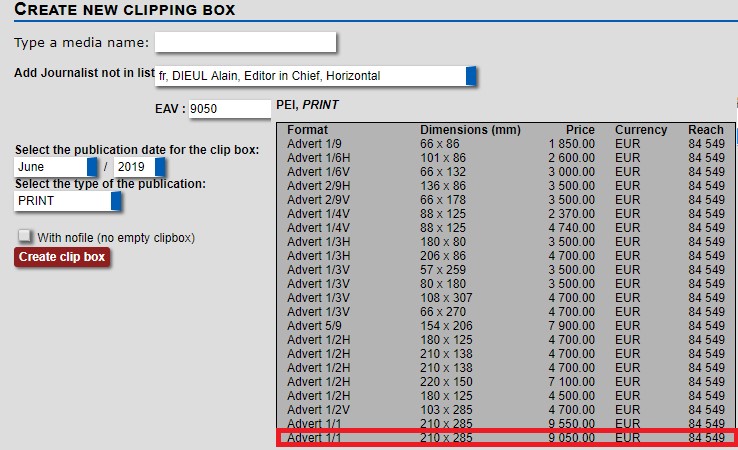
How to upload clippings into the database?
Search for your press file in the database via Main Menu, clipping tasks, Press file status. They are 2 ways to access the clipping files page.
- If you hold down the control button and click on the PFID number in red you open your press document in a new window, then click on Clipping files.
- If you hold down the control button and click on the icon in green you open the Clipping files.
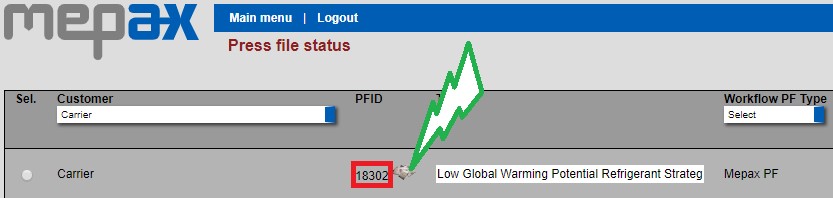
When you are on the Clipping files page the first things you need to do is create a New clipping box by clicking on the link as shown below in yellow:

Now you have the possibility to create your new clipping box by following this process.
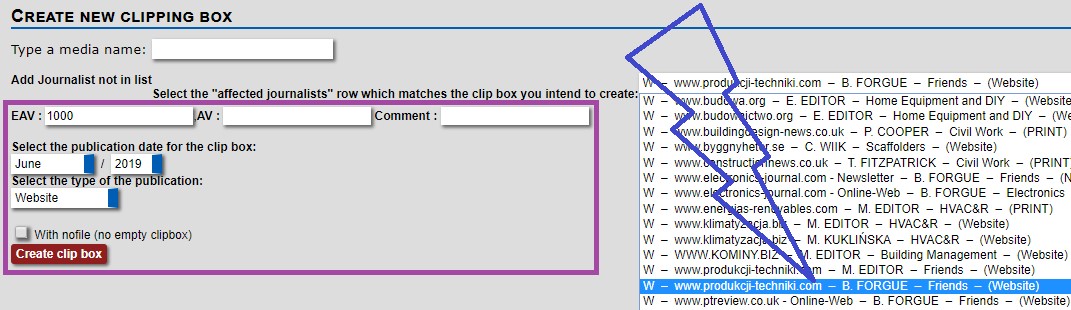
Select the media name by scrolling in the drop-down box as displayed above in blue.
Fill all the fields above in purple:
- Fill EAV (Equivalent Advertising Value) field = The sum had to be paid to obtain the same coverage.
- AV: You only complete this field if you have to upload an advert as part of a competitor monitoring. In this case you would complete AV instead of EAV.
- Comment: You have the possibility to add a comment if needed.
- Complete the publication date boxes
- Select type of publication
- Then click on “Create clip box” in red.
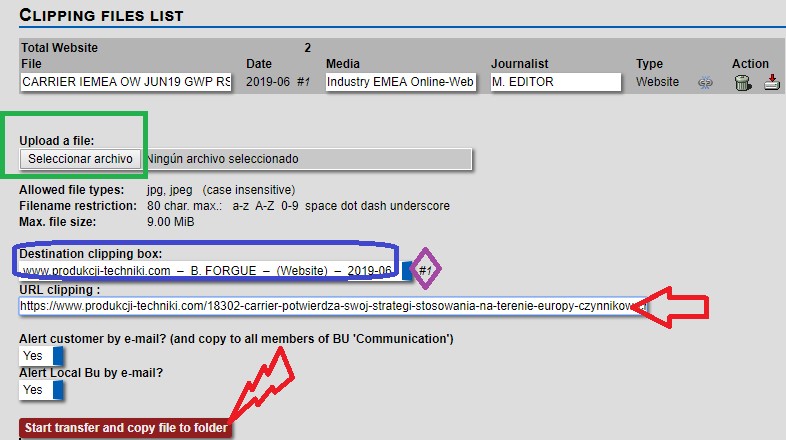
- Upload your clipping previously saved in your own clipping folder shown above in green.
- Check the destination clipping box to make sure the correct media is shown in blue.
- If the client wants this option, you can upload the URL clipping
- The last 2 fields will be completed automatically with the word Yes, you can change to NO if needed.
- Finally click to “Start transfer and copy file to folder”.
Now your uploaded clipping appears in the clipping files list.

- Other way to create your clipping box if the media does not appear in the affected journalist drop-down box:
- Type your media name and select it on the field below in purple.
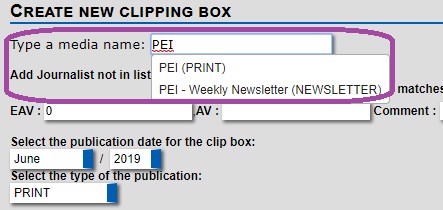
- Select your journalist not in the list, the rest is the same.

- Useful trick to help with EAV when using the Type media name box.
When your select your media & journalist a box will appear with all the advertisement cost we have available in the media profile. Please use this when calculating EAV as displayed below in red.