
How to follow your meeting/event invitation?
The journalists have received your invitation.
For a press conference:

- In green: they can answer that they will attend the press conference. In this case the status changes automatically from W to Y in the affected journalists.
- In red: they can answer that they will not attend the press conference. In this case the status changes automatically from W to N in the affected journalists.
- In orange: they cannot answer for the moment.
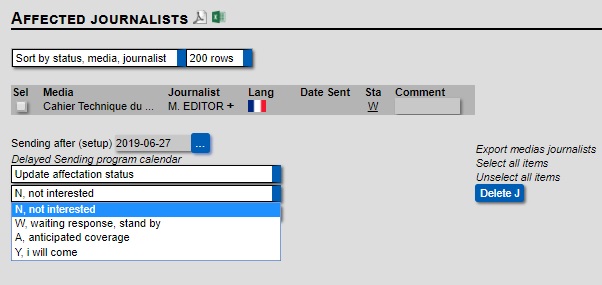
If a journalist replies to you by email, you can change the status on Affected Journalists manually.
- To do this, select the media by checking the box and going to choose a task and select update affectation status, then by scrolling in the drop-down box in blue choose the status you want updated and click on Proceed.
Please note, that the journalists that have not answered you will receive a reminder every 2 weeks before the event.
For a One to One meeting:
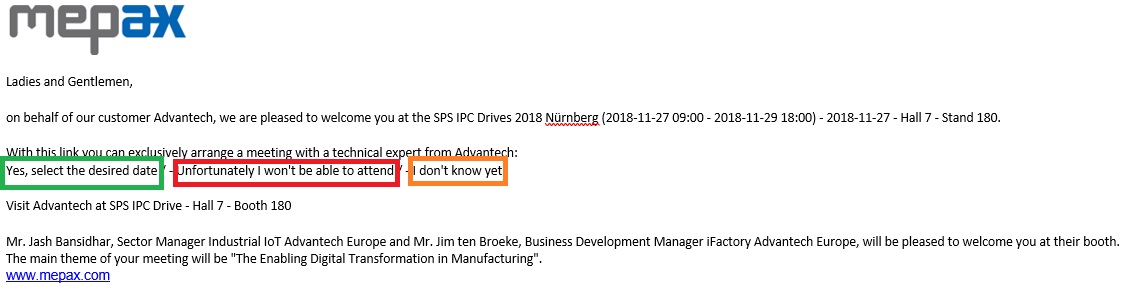
- In green: they can answer that they will attend the one to one meeting and they access the calendar to choose the meeting date and time. In this case the status changes automtically from W to Y in the affected journalists and your calendar is also automatically filled.
- In red: they can answer that they will not attend the one to one meeting. In this case the status changes automatically from W to N in the affected journalists.
- In orange: they cannot answer for the moment.
Please note, that the journalists that have not answered you will receive a reminder every 2 week before the meeting.
If a journalist replies to you by email, you can change the status in Affected Journalists manually and you can save for them the date and time of the meeting.
- To do this, select the media by checking the box and going to choose a task and select update affectation status, then by scrolling in the drop-down box in blue choose the status you want updated and click on Proceed.
- To save the date & time, please go to contact calendar:
- By checking the time box in red you can indicate that your client is not available at this time which means the journalist cannot choose that time.
- Then by clicking on the plus in green, a window will appear.
- Then by writting the name of the journalist, their name will appear, you have to select it and click on "insert in the range of the selected calendar" as shown below in purple.

Now your client's meeting is saved in the contact calendar as shown below in green.
You can also download a PDF interview listing for the client, by clicking on the PDF icon as displayed below by the purple arrow.
